Shifts that run themselves
Fixed hours or a flexible start window. The app counts down to the shift, clocks in on its own, and records nothing outside it.
Easetrack counts down to each person's shift, clocks them in on its own and records nothing outside it. You see attendance, productivity and who's working — without chasing anyone.
One quiet app on each computer. One portal for the team.
Fixed hours or a flexible start window. The app counts down to the shift, clocks in on its own, and records nothing outside it.
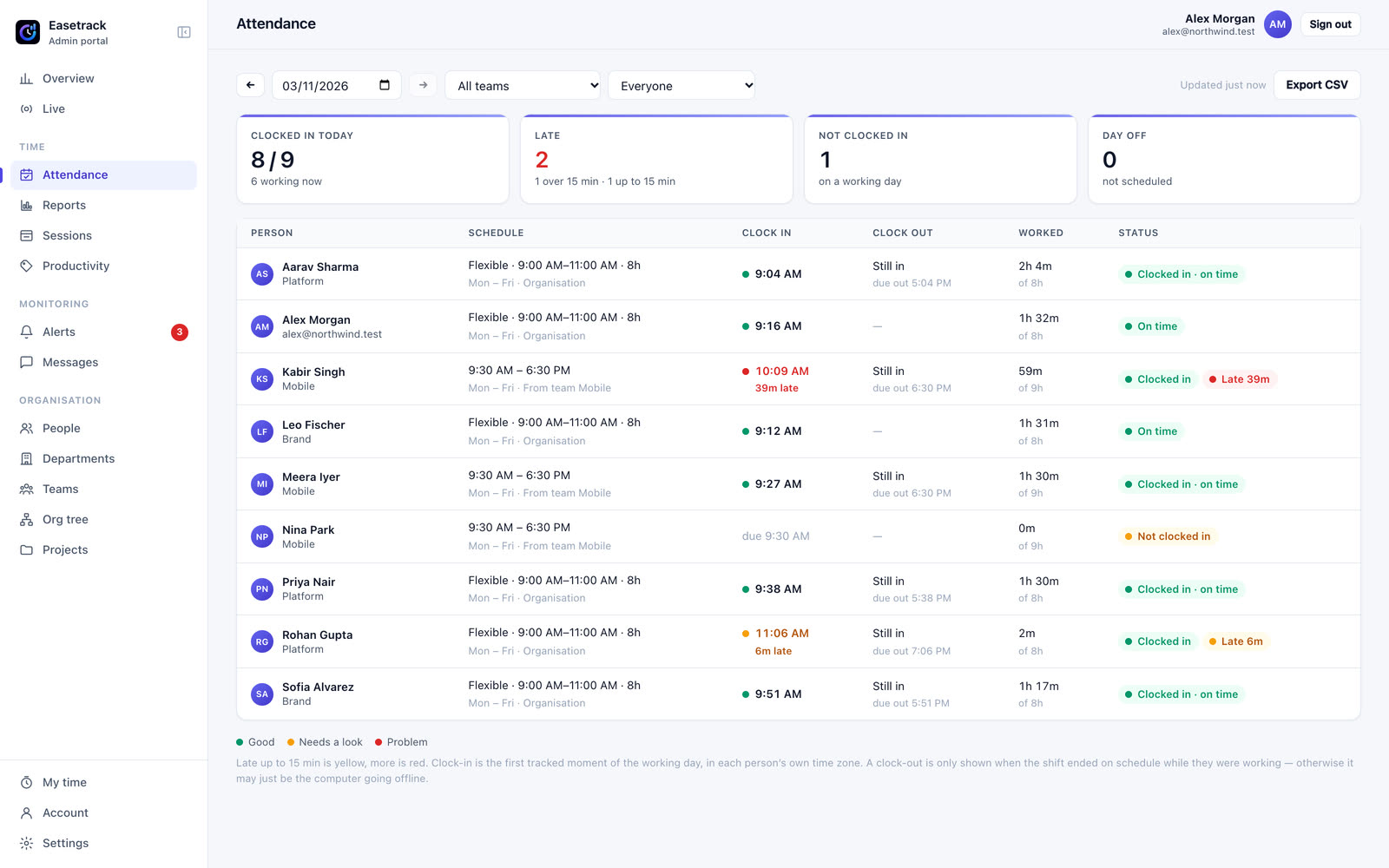
Every clock-in marked green, yellow or red — on time, a little late, very late. Clock-outs only when the shift really ended.
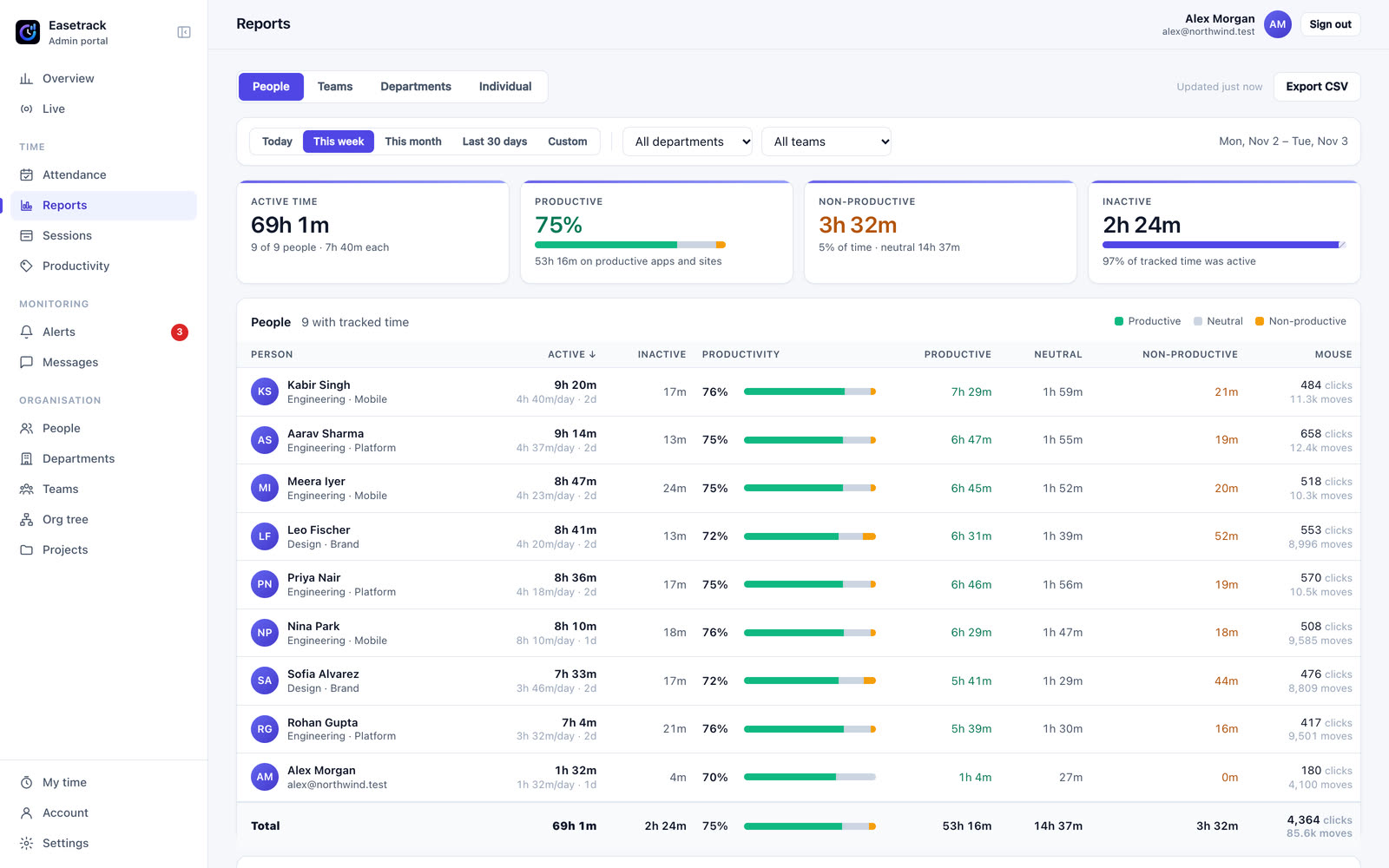
Productive, neutral and non-productive time from the apps and websites actually used — by person, team or department.
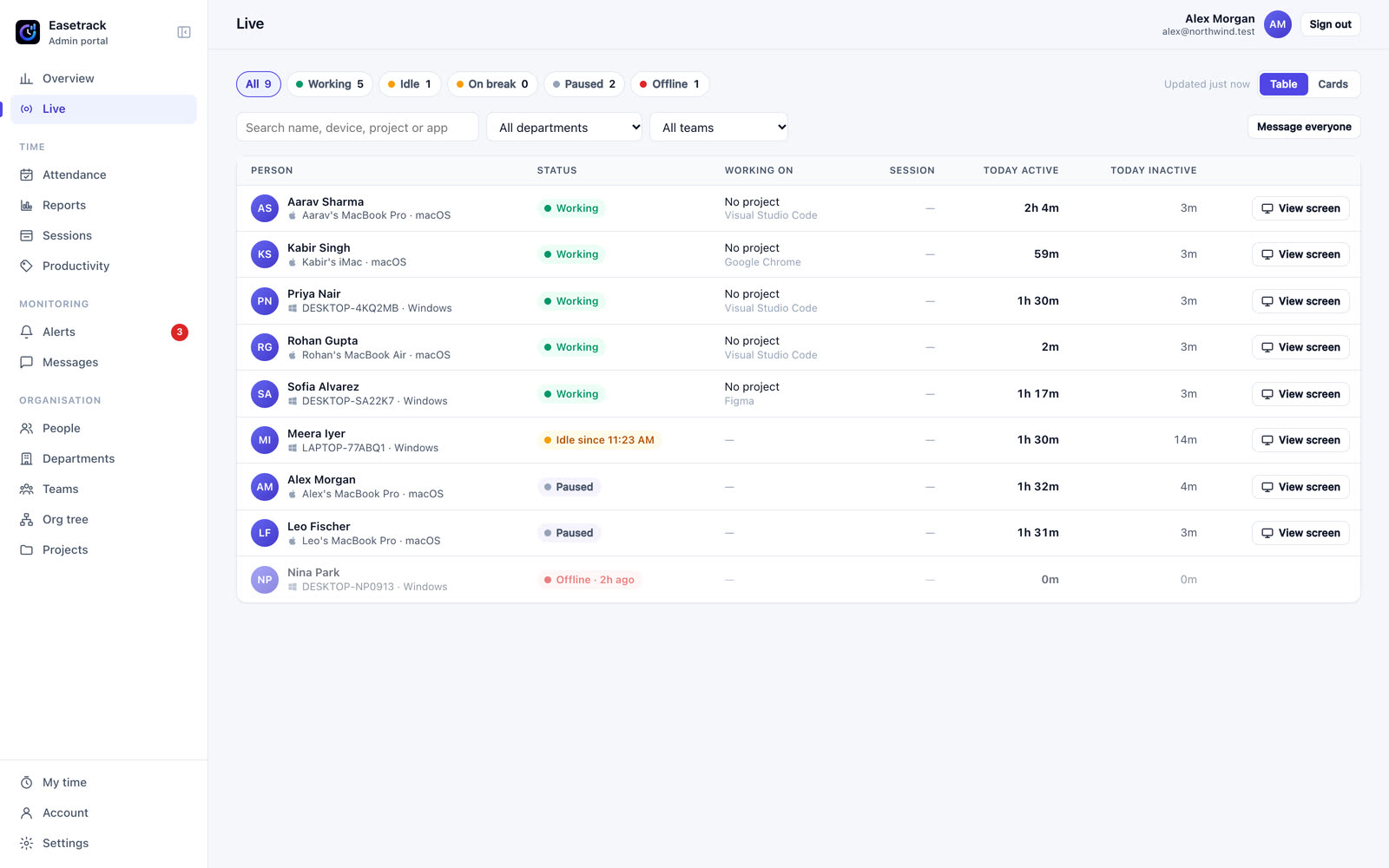
Who is working, idle or on a break right now, on which computer — and a live screen view when you need to help.
Send a note to everyone, a team or one person, straight to their app. Get alerted about long idle time or blocked sites.
Each person signs in here for their hours, schedule, attendance and productivity — and can change their password.
Set a shift once — per team or per person. Easetrack handles the rest.
The menu bar counts down to the shift. Nothing is recorded yet.
The shift starts and so does tracking — no button to forget.
A flexible start counts as late after the window closes. Yellow up to 15 minutes, red after.
Hours done, tracking stops. Only a real, on-schedule clock-out is shown.
Active time split into productive, neutral and non-productive, from the apps and websites people really use. Relabel a site once and every report updates — past days too.
Working, idle, on a break or offline — with each person's computer and platform. Open a live screen view to help; they always see an indicator.
Add departments, teams and people, and choose fixed or flexible shifts — per team or per person.
Each person installs Easetrack on their Mac or Windows PC, signs in and accepts the monitoring consent.
Shifts start and stop on their own. Everyone sees their own time here; admins and leads see their team.
Honest hours start with honest tracking. People know exactly what is recorded.
A plain-language consent when they sign in to the app.
Websites as domains like github.com — never full addresses or page content.
Mouse clicks and moves are counted. What anyone types is never recorded.
A live screen view shows an indicator on their computer and ends on its own.
Sign in with the account your admin created for you.
Your admin sends you the Mac or Windows app.